Notifications & Reminders
Set up daily practice reminders to stay consistent with your DBT skills and build healthy habits.
Enable Notifications
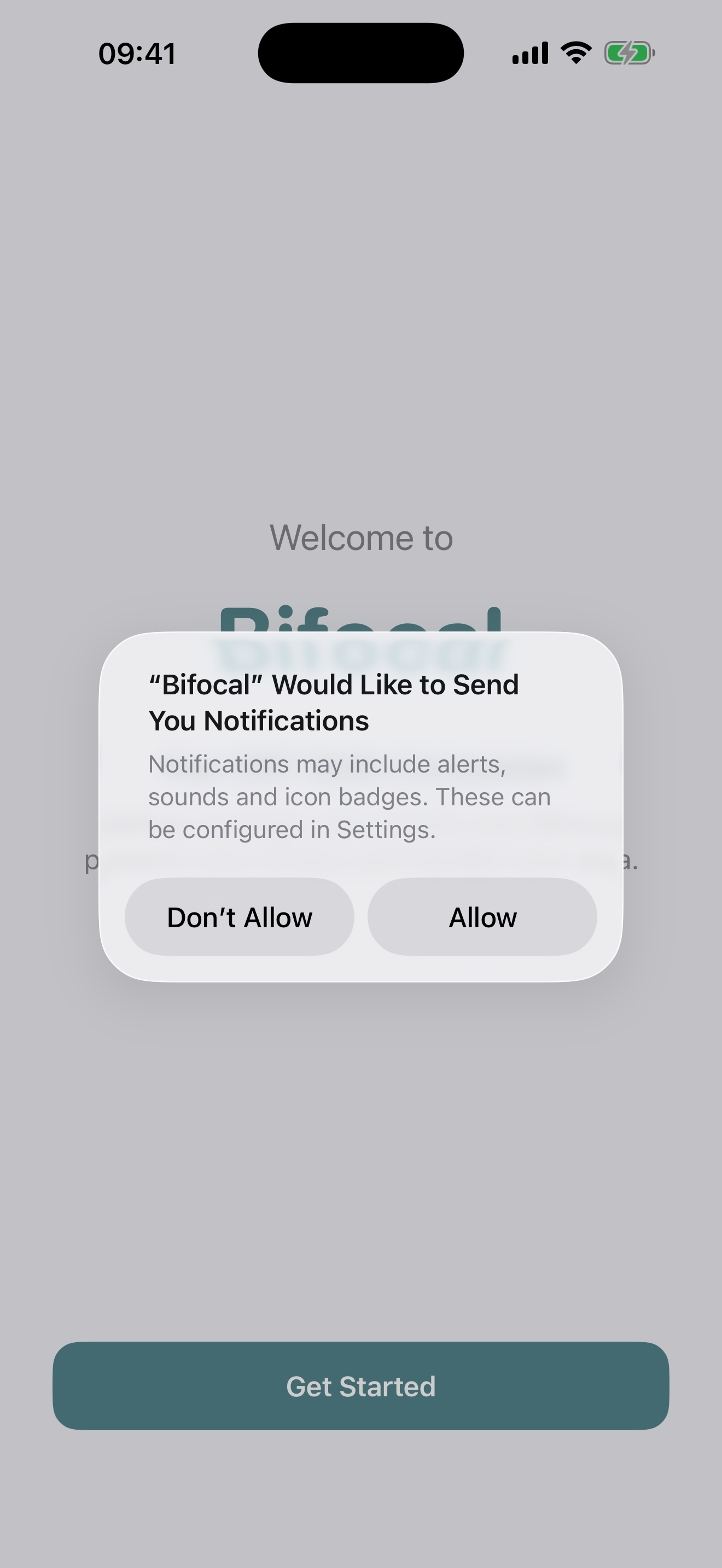
First, you'll need to grant Bifocal permission to send notifications:
- When you first open Bifocal, you'll be asked to allow notifications
- Tap Allow when prompted
- If you previously declined, you can enable notifications by:
- Opening iOS Settings
- Scrolling to Bifocal
- Tapping Notifications
- Toggle Allow Notifications to ON
Set Up Daily Reminders
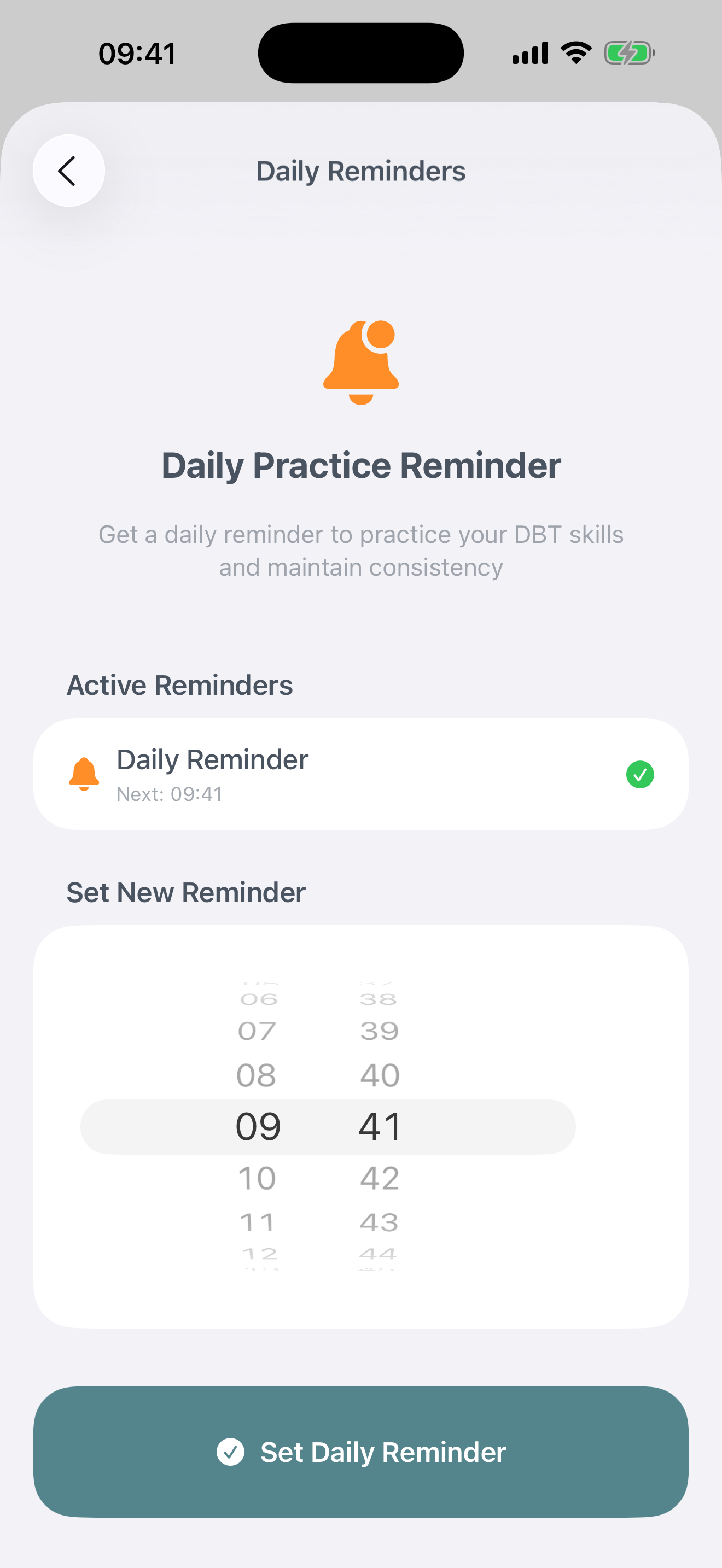
Configure when you want to be reminded to practice your skills:
- Open Bifocal and tap the Profile tab
- Tap Settings
- Find the Reminders section
- Toggle Daily Reminder to ON
- Tap Reminder Time to set when you want to be notified
- Choose a time that works best for your routine
When to Set Reminders
Start your day with mindful intention and set a positive tone
Check in during lunch break and practice skills as needed
Reflect on your day and log any skills you've used
Wind down with calming practices before bed
Manage Active Schedules
View and edit all your scheduled reminders in one place:
- Go to Settings › Scheduled Reminders
- See a list of all active schedules
Getting the Most from Reminders
Choose A Realistic Time
Set reminders when you can actually practice, not during busy or stressful periods.
Adjust as Needed
Your routine changes. Update reminder times seasonally or when your schedule shifts.
Track Effectiveness
Notice which reminders help you practice consistently, and adjust accordingly.
Don't Overwhelm
Too many notifications can feel stressful. Quality over quantity.
Celebrate Streaks
Let reminders help you build momentum, not create pressure.
Troubleshooting Notifications
Not receiving notifications
Check these settings:
- iOS Settings › Notifications › Bifocal › Allow Notifications is ON
- Bifocal Settings › Reminders › Daily Reminder is ON
- Your device is not in Do Not Disturb mode (or add Bifocal to allowed apps)
- Check that Focus modes aren't blocking Bifocal notifications
- Ensure your device time zone is set correctly
Notifications arriving at wrong time
This usually happens when:
- Your device's time zone changed (when traveling)
- Daylight saving time adjusted
- Multiple reminder schedules are overlapping
Solution: Edit the reminder time in Bifocal Settings to match your current time zone.
Notifications not showing on lock screen
Check your notification display settings:
- iOS Settings › Notifications › Bifocal
- Ensure Lock Screen is enabled
- Set Banner Style to Persistent or Temporary
- Enable Badges if you want the app icon to show a count
Common Questions
Will I lose my streak if I miss a reminder?
Reminders are just prompts to help you remember to practice. Your streak is based on whether you log skills, not whether you respond to notifications. You have until midnight each day to maintain your streak.
Can I customize the notification sound?
Notification sounds are controlled by iOS. To change them, go to iOS Settings › Notifications › Bifocal › Sounds and select your preferred alert tone.
Do notifications work when the app is closed?
Yes. Once you've set up reminders, they'll work even when Bifocal isn't actively running. They're scheduled with iOS and will fire at the correct times.
Will reminders drain my battery?
No. Bifocal's notification system uses iOS's native scheduling, which is highly battery-efficient. You won't notice any impact on battery life.