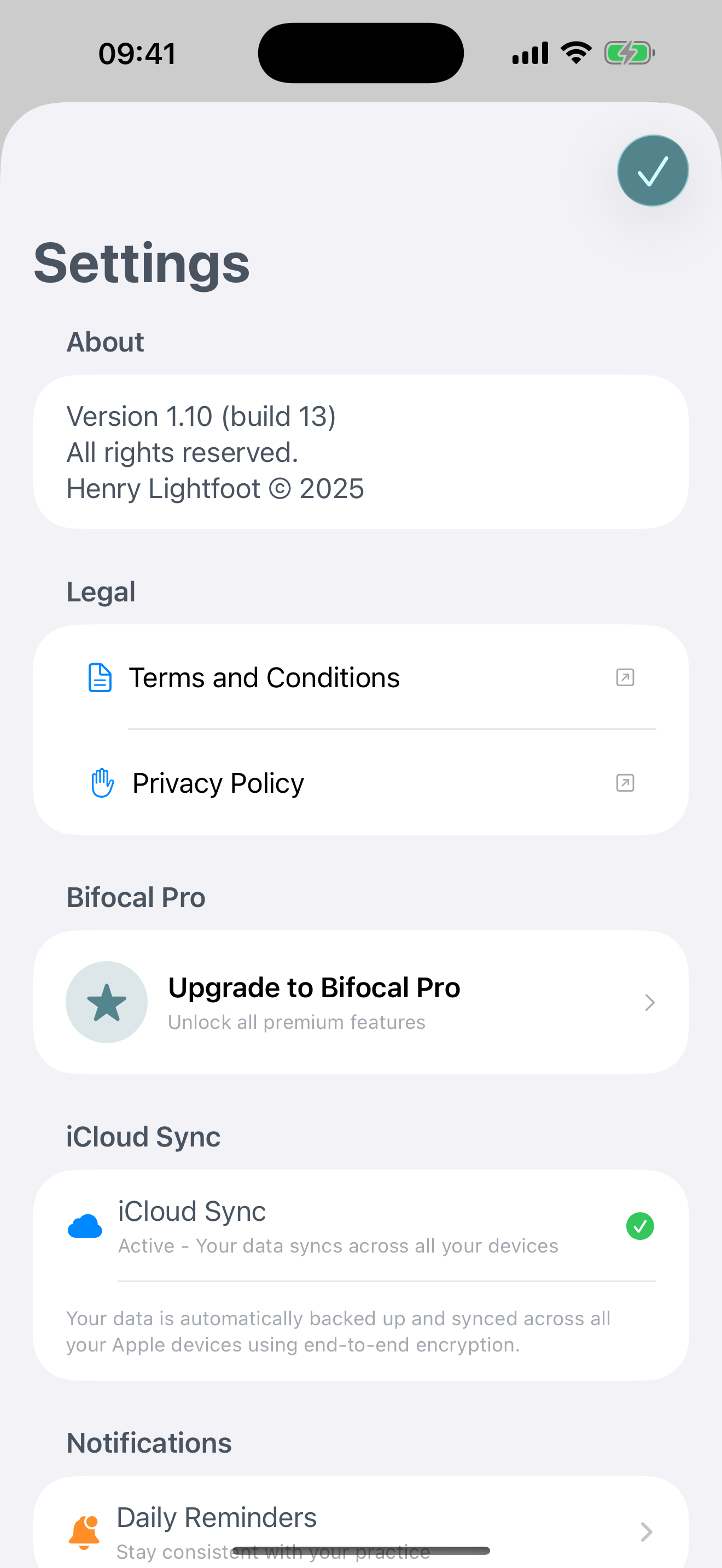
iCloud Sync
Keep your DBT practice data synchronized across all your Apple devices automatically and securely.
What is iCloud Sync?
iCloud Sync allows Bifocal to automatically backup and synchronize your data across all your devices where you're signed in with the same Apple ID. This means:
- Your skill logs appear on all your devices
- Cope-ahead plans are accessible everywhere
- Diary entries sync seamlessly
- Mantras and scheduled reminders stay in sync
- Your streak and progress tracking is consistent
How Sync Works
Bifocal handles synchronization automatically:
- Real-time sync: Changes sync immediately when you have internet connection
- Offline support: You can still use Bifocal without internet; it will sync when reconnected
- Conflict resolution: If you edit the same item on multiple devices, the most recent change wins
- Initial upload: First sync may take a moment depending on how much data you have
Setting Up on Additional Devices
To sync Bifocal on another device:
- Install Bifocal from the App Store on your other device
- Make sure you're signed in with the same Apple ID
- Open Bifocal and complete onboarding
- Wait for initial sync to complete (you'll see a sync status indicator)
Your data will automatically download from iCloud to the new device.
Troubleshooting Sync Issues
Sync is not working
Try these steps:
- Check that you're signed in to iCloud on your device (iOS Settings › Your Name)
- Ensure iCloud Drive is enabled (iOS Settings › Your Name › iCloud › iCloud Drive)
- Verify you have internet connection
- Restart the Bifocal app
Data is not appearing on new device
Ensure:
- Both devices are signed in with the same Apple ID
- iCloud Drive is enabled on both devices
- Initial sync has completed (can take a few minutes)
- You have available iCloud storage space
Duplicate entries appearing
This can happen if:
- You enabled sync on multiple devices with different local data
- You can manually delete duplicates from the app
- If issues persist, contact support at bifocal@henrylightfoot.co.uk
Running out of iCloud storage
Bifocal uses minimal storage (typically under 10MB even with years of data), but if you're low on iCloud space:
- Check iOS Settings › Your Name › iCloud › Manage Storage
- Consider upgrading your iCloud plan or freeing up space
- You can still use Bifocal without sync if needed
Common Questions
Is my data secure with iCloud Sync?
Yes. Bifocal uses Apple's CloudKit with encryption both in transit and at rest. Your data is stored in your private iCloud container that only you can access. Apple cannot read your data, and neither can we.
Does iCloud Sync work with Family Sharing?
No. Your Bifocal data is private to your Apple ID only. Family Sharing does not give family members access to your Bifocal data.
How much iCloud storage does Bifocal use?
Very little. Most users will use less than 5MB of storage even after months of daily use. Text-based data like skill logs and diary entries are extremely space-efficient.